How Does Chaturbate Audio Sync Work?
TLDR
When I installed my first tip goal plugin on Chaturbate, my audio suddenly trailed behind my video by a few seconds, and I panicked thinking I'd broken my whole setup. The truth is the plugin probably didn't "break" anything - it just exposed latency that was already hiding in your audio chain. Here's how I diagnose it before touching OBS.
Is the plugin actually causing my audio lag, or is it just revealing a problem that was already there?
Nine times out of ten, the plugin is the straw, not the camel. A tip goal app itself doesn't usually inject sound - but it does add page load, scripts, and sometimes alerts or soundboard triggers through virtual audio devices like Voicemeeter or VB-Audio cables. Every one of those hops adds a small buffer delay, and when things stack up, you get that 3-4 second drifty lag you're hearing.
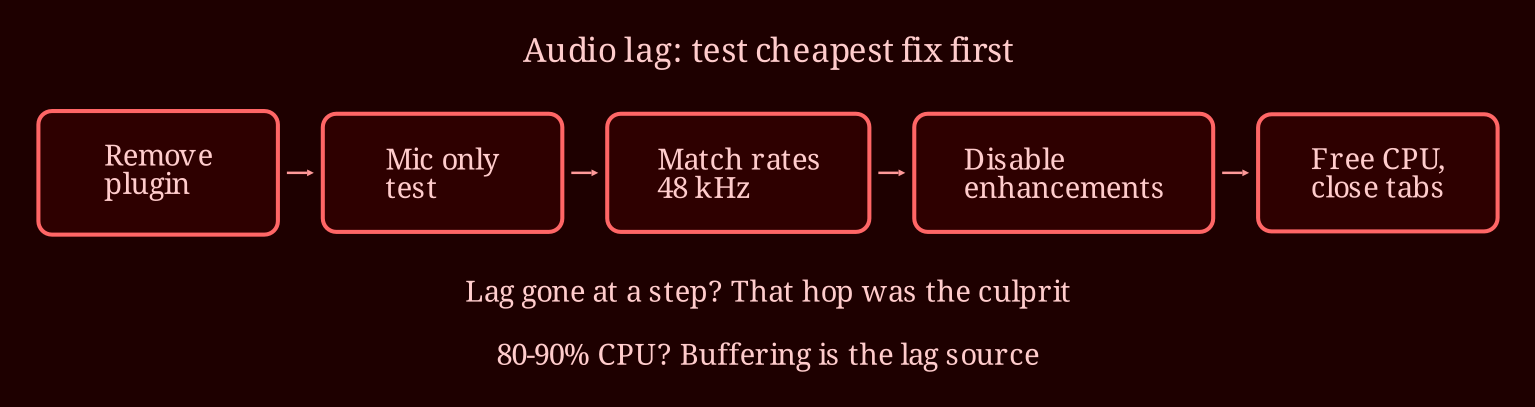
There's also plain old CPU load. If the plugin pushes your browser to the edge, the audio pipeline buffers more to keep up, and buffering means delay. So before blaming the plugin, open Task Manager while streaming with the plugin running and watch your CPU and memory. If you're sitting above 80-90% usage, that's your answer right there.
One more thing worth clarifying: Chaturbate itself isn't adding a server-side delay to your audio. If viewers in chat say "your audio is behind," that could be their own playback buffering, not your broadcast. Distinguish between what you hear on your recording and what a viewer reports - they're different problems.
What's the fastest way to fix a 3-4 second delay without switching to OBS?
Work through this in order - it's cheapest-to-test first:
1. **Remove the plugin and test again.** If the lag disappears, you've confirmed the plugin is in the chain somewhere. Re-add just the plugin without sound alerts and test again.
2. **Test mic only vs. mic + desktop audio.** If mic-only is in sync but mic + soundboard isn't, the problem is in your virtual audio routing, not the mic.
3. **Check your sample rates.** This is the classic silent killer. Go to your sound settings and make sure every device - mic, headphones, virtual cables, default output - is set to the same rate, ideally 48,000 Hz. A 44.1 kHz device mixed with 48 kHz devices makes audio drift worse the longer you stream.
4. **Disable audio enhancements.** Windows sound settings often have "enhancements" enabled per device, which adds processing latency. Turn them all off.
5. **Close competing tabs and extensions.** Every tab is fighting for your CPU. If you're running the CB page, the plugin page, a browser tab with music, and a chat window, you're stacking buffers on buffers.
6. **Update your audio drivers.** Old or generic drivers can use bigger buffers. Updating to the latest manufacturer driver takes ten minutes and can tighten latency noticeably.
When is it actually worth switching to OBS, and how does sync work there?
If you've done the checklist and the lag persists, OBS gives you something browser streaming can't: manual control. In OBS you get a sync offset setting in milliseconds for each audio source, so if you know your mic is 200ms behind, you just type in a correction and it's fixed - permanently, every stream.
Setup is simple: download OBS, add your Chaturbate stream key from the broadcast settings, add your camera as a video source and your mic as an audio source, and use a Browser Source for your tip goal overlay if the plugin supports it. OBS's audio mixer uses WASAPI and tends to be much more forgiving than a browser tab juggling six scripts.
That said - don't switch to OBS expecting magic if your root cause is a sample rate mismatch or a CPU overload. OBS will inherit the same sloppy audio chain. Fix the underlying issue first; OBS is the polish step, not the rescue step.
Which plugins are worth using, and how do I prove the fix before going live?
For plugins, think in terms of resource weight, not "best." Lightweight browser-native tip goal apps that just track totals and draw a goal bar are safe. Tools that trigger sound alerts, animations, or route audio through virtual cables are the heavy ones - they're fine if your machine can handle it, but they're usually where lag creeps in. OBS bot overlays that render the goal bar as part of your stream (rather than adding something for your browser to process) are often the most stable setup overall.
Before your next real stream, do a private or unlisted test session and record a short local clip. Clap your hands,on camera, while speaking, then step through the recording frame by frame and measure where the clap sound lands relative to your hands. If it's within a couple frames, you're broadcast-ready. If not, adjust and re-test.
Honestly, the clap test will become your best friend - it's the only way to *know* your sync is fixed rather than hoping. If you'd rather skip the browser lag guessing games entirely and enjoy watching instead of debugging, XLoveCam is the live-cam platform I'd point you toward for a smoother overall experience.
What's your next step?
Try the triage checklist in order before you spend a single dollar on new gear - the fix is almost always free. And if you've cracked your own audio sync issue with a particular combination of plugin and settings, share it in the comments; these chains are so setup-specific that your fix might be exactly what another broadcaster needs to hear.