Why Are My Videos Not Uploading?
TLDR
I've been exactly where you are - ten uploads in a row, the picker loads, the screen freezes, nothing appears, and it's due tomorrow. Ten retries won't fix it; they usually make the cache worse. The trick is to diagnose in five minutes with a tiny test clip before touching anything else.
Why does the video vanish after the picker closes?
That silent disappearance between "choose from album" and the edit screen is the app dying during processing, not during the pick itself. Once you select a video, the app tries to copy and transcode it in the background - if the process runs out of memory, storage, or hits a codec it can't handle, it fails quietly and you get no error. First test: try a 5-second clip instead. If the short one attaches fine, your problem is the file itself (size, length, or format), not your account or the app being "broken."
Also worth knowing: every failed retry dumps temp data into the app's cache. Ten attempts can leave you with a bloated, half-broken cache that makes failure more likely, not less. Stop retrying and clear the app's cache (or offload and reinstall on iOS) before your next attempt. Free storage matters too - a 2-minute 4K clip can be several GB, and the app often needs roughly that much free space again just to process it. If you're sitting at 800 MB free, that's your answer.
Is it the file format or the permissions?
Both, usually in that order. iPhones record in HEVC (H.265) inside a .mov container by default, and a lot of apps simply choke on it. Go to Settings > Camera > Formats and switch to "Most Compatible" (H.264), or re-encode an existing clip with HandBrake to an H.264 MP4 - that one conversion fixes the majority of these cases. On top of that, check that the app has full photo-library access in your OS settings. "Selected photos" or partial permission means the app can show you the picker but crash when it actually tries to read the file.
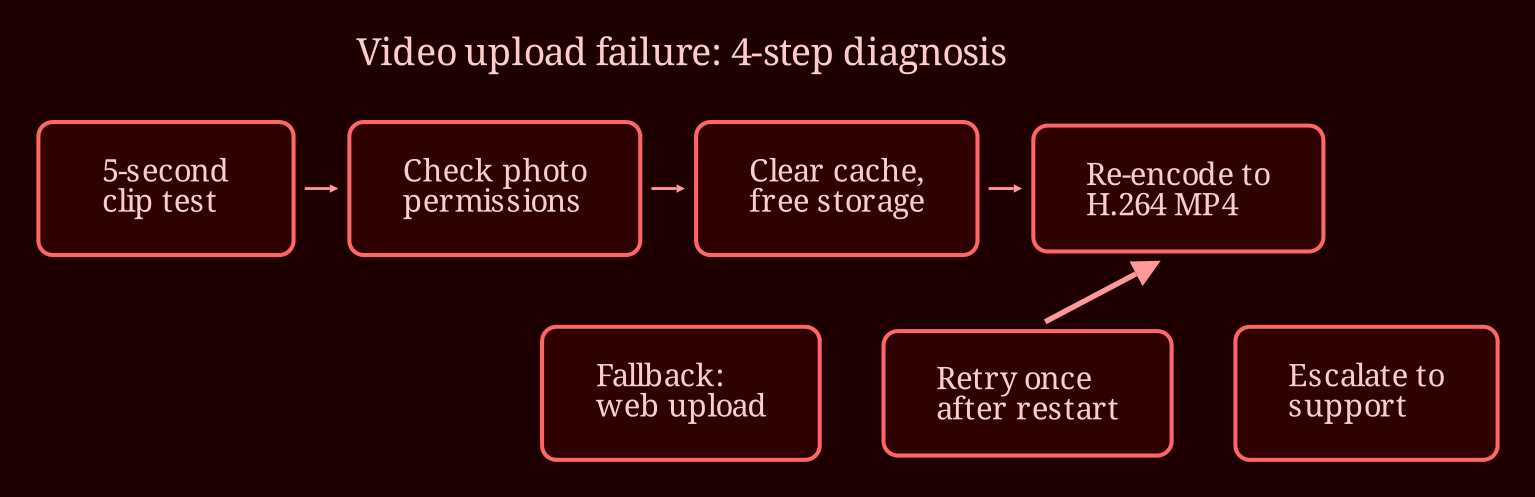
Quick triage order, fastest first:
1. Test with a 5-second clip to isolate file vs. app.
2. Check photo permissions - set to full access.
3. Clear cache / free up storage.
4. Restart the phone, airplane mode cycle, then retry once.
5. Trim the video down and re-encode to H.264 MP4.
6. Try uploading from the desktop/web version instead - it often sidesteps the mobile pipeline entirely.
If even the tiny clip won't attach after permissions and a cache clear, escalate to support. Include your device model, OS version, app version, and the video's length and file size - that's the stuff that gets a ticket answered, not "the video won't upload."
What's your backup plan when support is too slow?
Honestly, don't bet a deadline on a support ticket - they rarely resolve overnight. Your best hedge is the web or desktop upload route, which bypasses the mobile picker entirely and is where I'd go the moment the second attempt fails, not the tenth. Keep a re-encoded MP4 copy on hand in a cloud folder so you can grab it from any device, and once things calm down, switch your camera to H.264 so future clips don't pull this on you again.
For anyone who wants a smoother experience with live video in general, I've had far fewer headaches with xlovecam than with the usual social app upload pipelines - it just works where others quietly fail. Now the question is yours: when your next upload dies silently, will you actually stop and diagnose, or will you hit retry an eleventh time like the rest of us?